Backpacks
Backpack blocks let you control Eliobot accessories.
BUTTON TURTLE
Please note, to be used, Eliobot must be equipped with the button turtle backpack.
Program with buttons

Type: Order
Definition :
This block allows you to use the turtle button backpack to control Eliobot. We record the actions to be performed (forward, backward, turn left, turn right) for each button. Then once the sequence is recorded, you can play it by pressing the central button.
Use :
To have the youngest child program Eliobot, using buttons to give him instructions.
DHT11 SENSOR
Please note, to be used, Eliobot must be equipped with the humidity sensor backpack and the Adafruit DHT library.
Retrieve temperature or humidity value

Type: Value
Definition :
This block allows you to retrieve the temperature or humidity value measured by the DHT11 sensor.
Use :
If you want to retrieve the temperature or humidity measured by the sensor to use it in your program. For example, to display the temperature in the terminal.
LED MATRIX
Please note, to be used, Eliobot must be equipped with the LED matrix backpack.
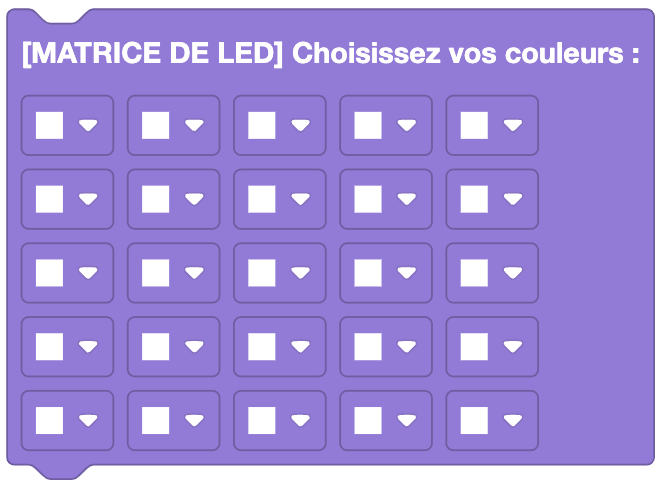
Choosing the colors of an LED matrix
Type: Order
Definition :
This block allows you to choose the colors of an LED matrix. It allows you to draw whatever you want on a 5x5 LED matrix with RGB colors. Note: Black corresponds to an off LED.
Use :
If you want to draw a logo or a message on an LED matrix. For example, to display information based on the results of your sensors.
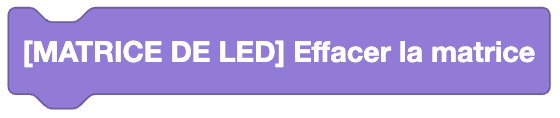
Clear colors from an LED matrix
Type: Order
Definition :
This block allows you to erase the colors from an LED matrix. It allows you to reset a 5x5 LED matrix with all LEDs off.
Use :
If you want to erase what is displayed on an LED matrix. For example, to erase a message or a logo.
Choose a logo to display on an LED matrix

Type: Order
Definition :
This block allows you to choose a logo to display on an LED matrix:
- Heart
- Happy smiley
- Sad smiley
- Up arrow
- Down arrow
- Left arrow
- Right arrow
- Cross -Check
Use :
If you want to display a logo on an LED matrix. For example, to indicate the direction Eliobot is taking or if an obstacle is detected.
Scrolling text on an LED matrix

Type: Order
Definition :
This block allows you to scroll text on the LED matrix, you can also choose the color of the text.
Use :
If you want to display a message on the LED matrix. For example, to display a welcome message or a message if an obstacle is detected.
BME280 SENSOR
Please note, to be used, Eliobot must be equipped with the environmental sensor backpack and the Adafruit BME280 library.
Retrieve different values measured by the BME280 sensor

Type: Value
Definition :
This block allows you to recover different values measured by the BME280 sensor:
- Temperature
- Humidity
- Pressure
- Altitude
Use :
If you want to retrieve the temperature, humidity, pressure or altitude measured by the sensor to use it in your program. For example, to make Eliobot move forward if the temperature is too high.
Set sea level pressure

Type: Order
Definition :
This block allows you to define the sea level pressure for the BME280 sensor.
Use :
If you want to set the sea level pressure for the pressure sensor. For example, to obtain an accurate altitude measurement. You can find it on this site place your cursor on the sea closest to you.
OLED screen
Please note, to be used, Eliobot must be equipped with the OLED screen backpack.
Display text on an OLED screen

Type: Order
Definition :
This block allows you to display text on an OLED screen. You can choose on which line you want to display the text, the screen has 6 lines.
Use :
If you want to display a message on an OLED screen. For example, to display a welcome message or a message if an obstacle is detected.
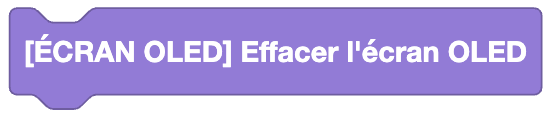
Clear OLED screen
Type: Order
Definition :
This block allows you to erase the OLED screen.
Use :
If you want to erase what is displayed on the OLED screen. For example, to erase a message or a logo.
Servo motor
Please note, to be used, Eliobot must be equipped with the servomotor backpack.
Set servo motor position

Type: Order
Definition :
This block allows you to define the position of the servomotor, you can also choose the location to which it is connected.
Use :
If you want to set the position of the servo motor so that it turns at a precise angle. For example, to turn Eliobot's head.
Continuous servomotor
Please note, to be used, Eliobot must be equipped with the continuous servomotor backpack.
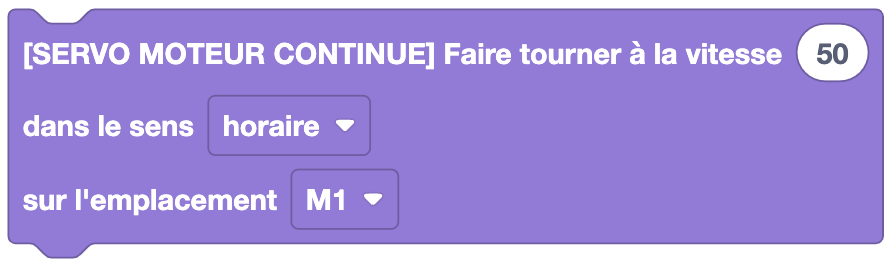
Rotate the continuous servo motor
Type: Order
Definition :
This block allows you to rotate the continuous servomotor in one direction or the other with a certain speed, you can also choose the location to which it is connected.
Use :
If you want to rotate the continuous servo motor so that it moves forward or backward.
Ultrasound Sensor
Please note, to be used, Eliobot must be equipped with the ultrasonic sensor backpack.
Retrieve the distance measured by the ultrasonic sensor

Type: Value
Definition :
This block allows you to recover the distance measured by the ultrasound sensor.
Use :
If you want to recover the distance measured by the ultrasound sensor to use it in your program. For example, to avoid obstacles.