Terminal
Here is how the terminal is organized. This explanation will help you in the next steps.
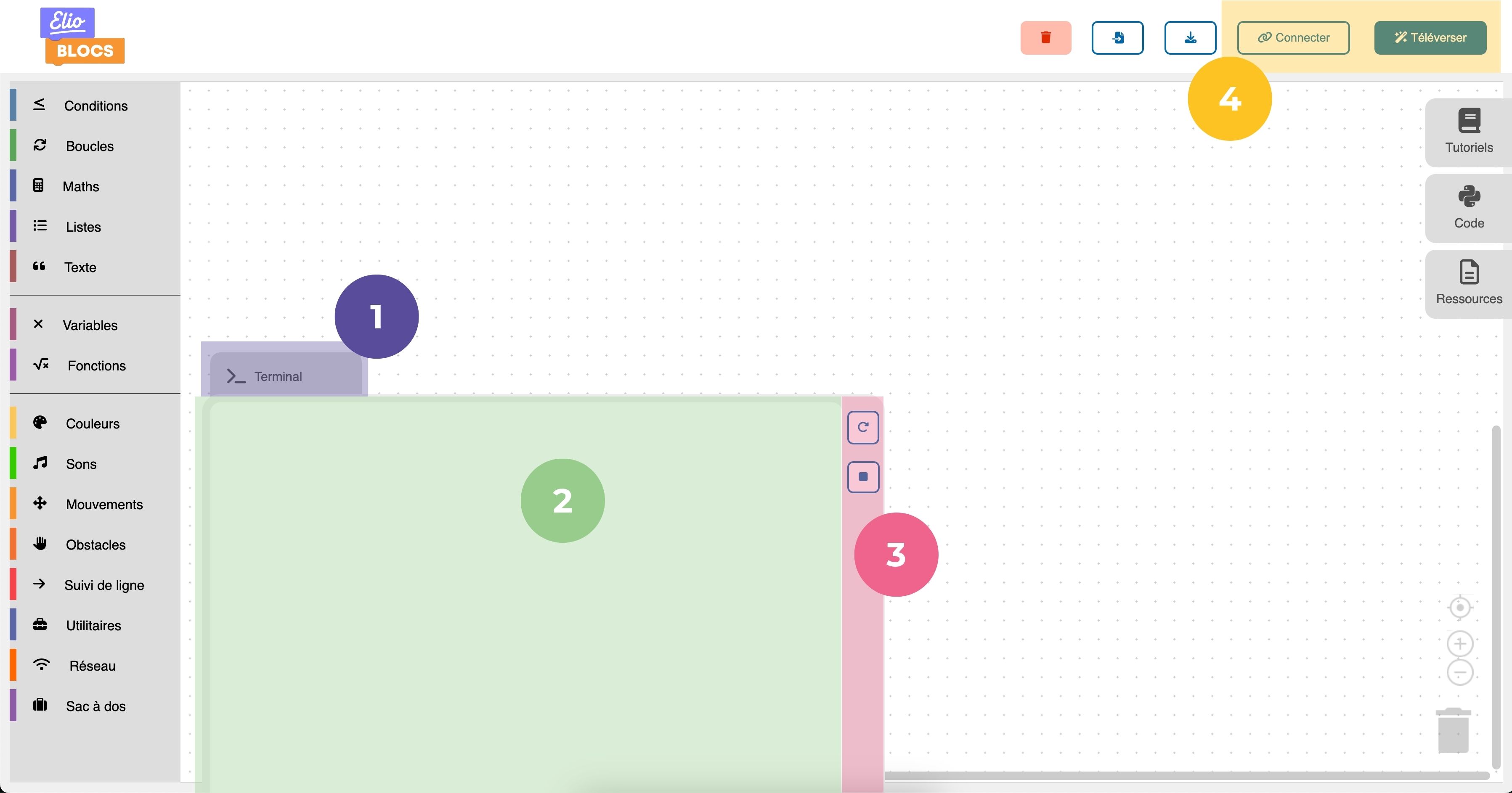
It's the "drawer" button that allows you to open or close the terminal.
This is the text area, this is where you will be able to communicate with Eliobot, see the error or success messages from your program and what it may have responded to you.
This is the terminal button area:
Restart the program: to restart the program that you uploaded to Eliobot.
Stop program: to stop the currently running program.
These two buttons are the ones that will allow you to operate the terminal:
- Upload: This button sends the code to Eliobot, as seen previously, but if you go to the terminal after uploading the code, you will be able to see the code that was sent (the code is sent in a language called binary; it's normal if you can't read it).
- Connect: This button allows you to establish the connection between Eliobot and your computer, this is what will allow communication between the two. The terminal will serve as messaging for this.
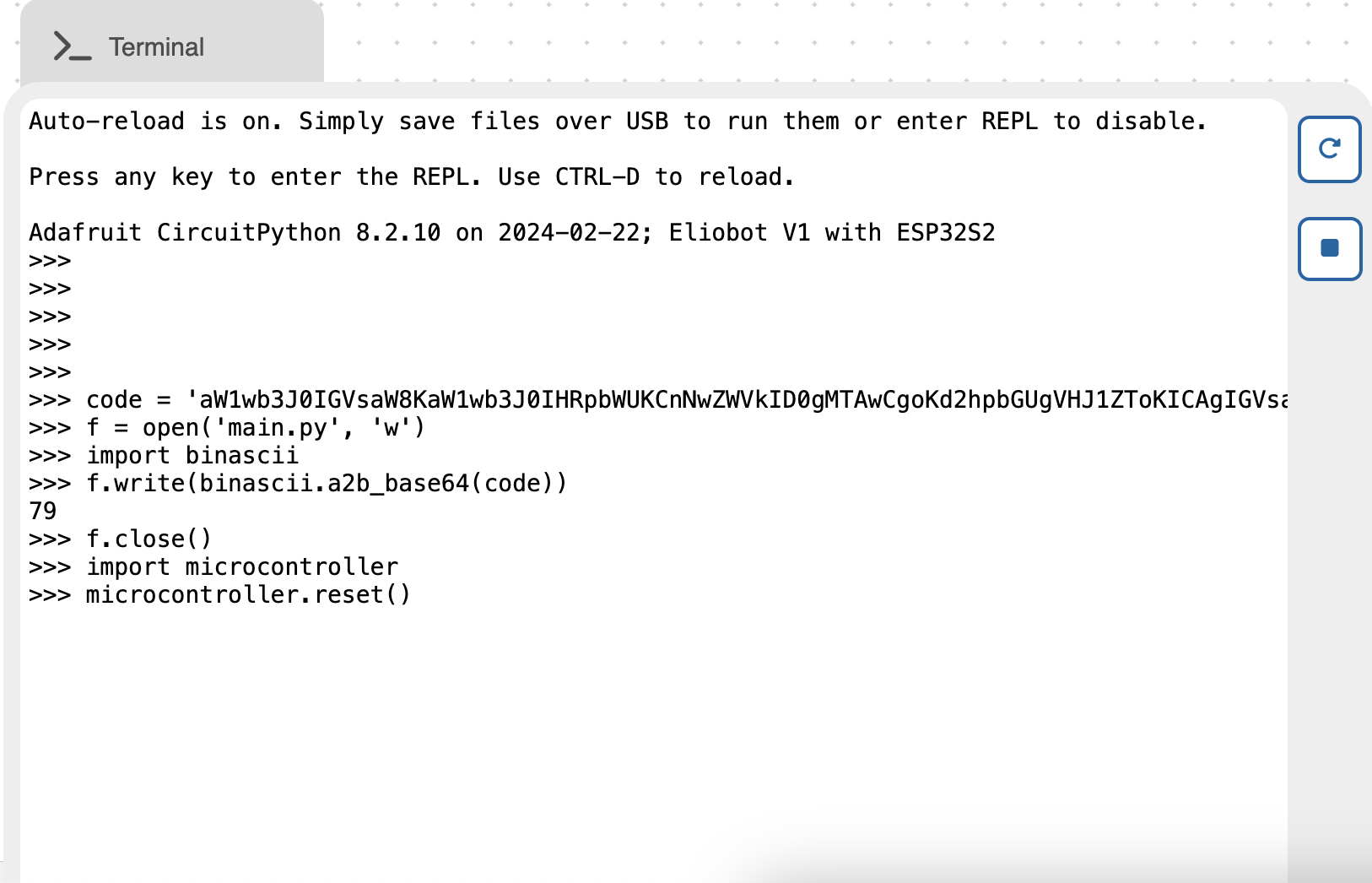
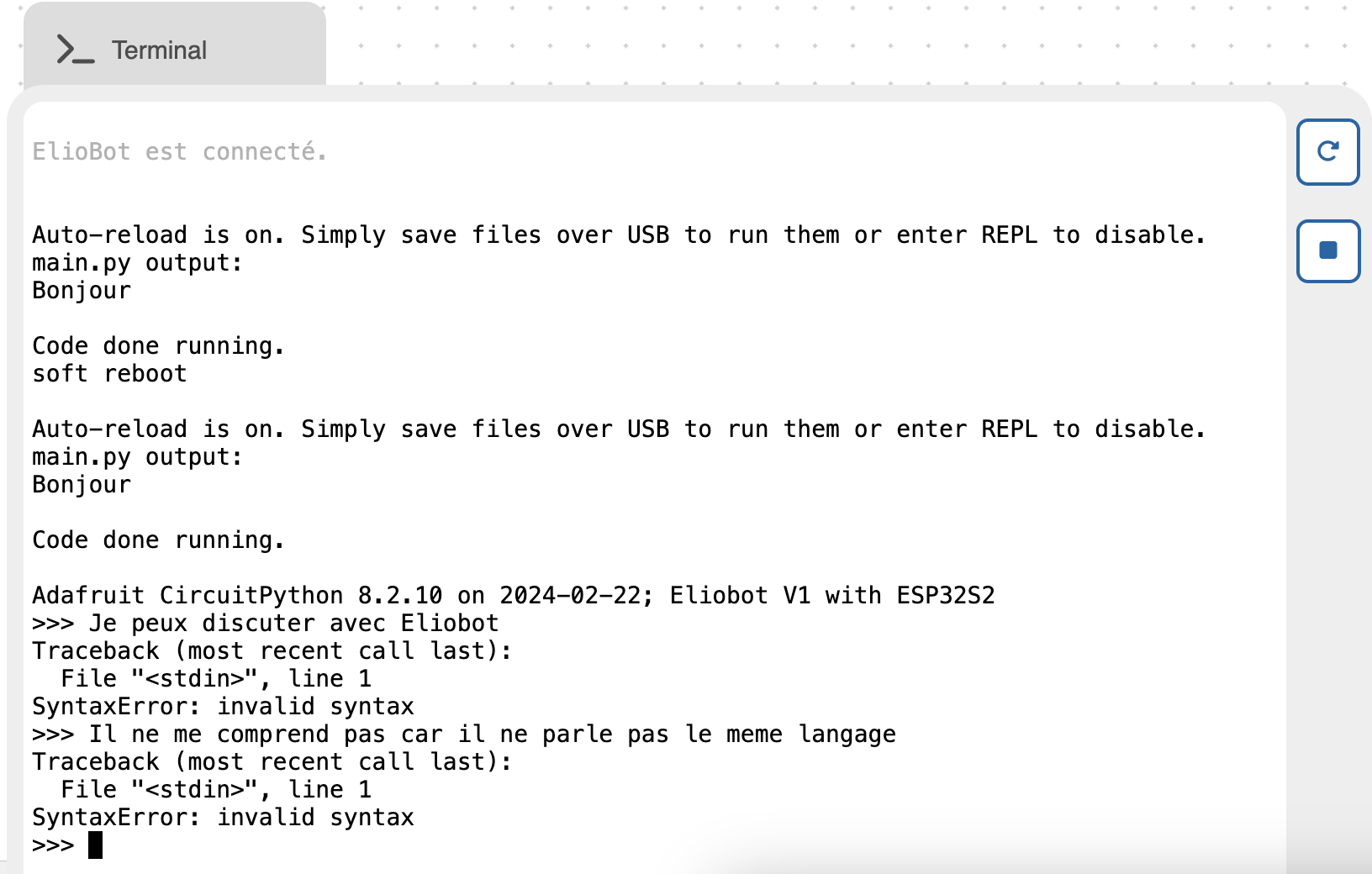
Eliobot is a robot that speaks with the Python programming language. This is why you will see messages in English in the terminal. But don't worry, we'll help you understand what he's telling you.
Terminal functionalities
Listen to Eliobot
When in one of your programs with Elioblocs, you use the  or
or  block, Eliobot will write to the terminal. You will be able to see what it is saying and understand what is happening.
If one of your programs does not work and the LED flashes red, you will be able to see in the terminal what is wrong.
block, Eliobot will write to the terminal. You will be able to see what it is saying and understand what is happening.
If one of your programs does not work and the LED flashes red, you will be able to see in the terminal what is wrong.
Send commands to Eliobot
When in the terminal you see >>>, it's Eliobot asking you to send him a command. You can send it commands in Python so that it executes them.
If you want to know more, you can check out the CircuitPython Documentation.
Terminal problems?
If, after clicking the  button, the message
 Eliobot is connected appears but nothing happens, try clicking the  button to restart the program, or
  if your program is still running. If nothing happens, unplug Eliobot from your computer, turn it off, and reconnect it.