Inputs
Input blocks let you retrieve information from Eliobot's environment.
Obstacle sensor blocks allow you to test the presence of an obstacle close to Eliobot.
Test for the presence of an obstacle

Type: Boolean block
Definition :
This block allows you to test the presence of an obstacle at a certain distance from Eliobot:
- at the front
- at the back
- left
- right
Use :
If you want to avoid obstacles such as walls or objects.
Line sensor blocks allow you to follow a line or test for the presence of a line.
Follow a line
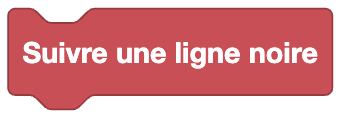
Type: Order
Definition :
This block allows you to follow a black line.
Use :
If we want Eliobot to follow a black line on a route, the one on the back of your instructions for example.
Test for the presence of a line

Type: Boolean block
Definition :
This block allows you to test the presence of a black line under Eliobot:
- in the middle
- left
- right
- middle left
- right middle
Use :
To allow Eliobot to follow a black line on a course and test whether to turn left or right.
Change line sensor sensitivity
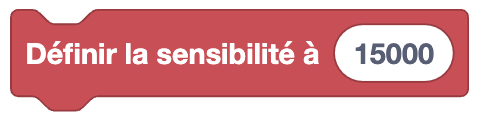
Type: Order
Definition :
This block allows you to modify the sensitivity of the line sensor. Changes the value at which the line sensor detects a line.
Use :
If you are in a very bright or dark space, you can change the sensitivity of the line sensor so that it detects the line better.
Read the value of a line sensor

Type: Value
Definition :
This block returns the value of the line sensor. You can display it in the terminal for example. It can be used to set the sensitivity of the line sensor.
Use :
If you want to retrieve the value of the line sensor to better calibrate the sensitivity of the line sensor.
Automatic line calibration
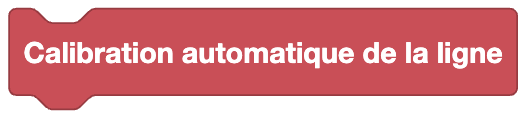
Type: Order
Definition :
This block allows you to automatically calibrate the line sensor. It allows you to define the value at which the line sensor detects a line.
Use :
You must place the 5 line sensors above a black line and eliobot will automatically calibrate the value at which it detects the line by moving forward and backward. Eliobot must be perpendicular to the line for the calibration to be correct.
Test if the button is activated
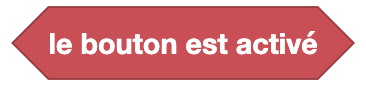
Type: Boolean block
Definition :
This block allows you to test whether Eliobot's button is activated. It returns true if the button is activated, and false otherwise.
Use :
If you want to perform an action only if the Eliobot button is activated. Start your program for example.
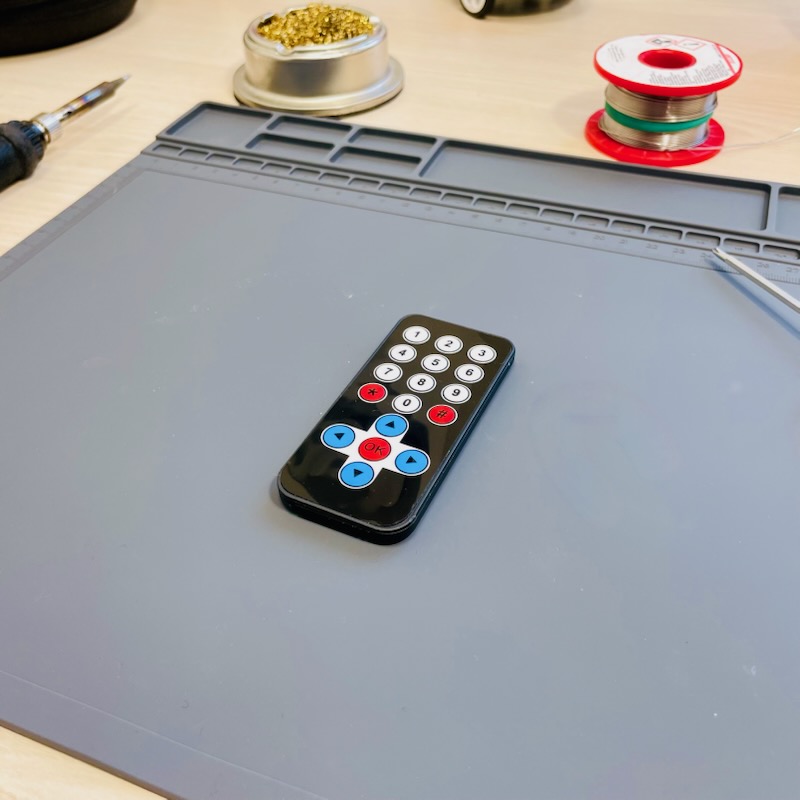
The infrared remote control
To use the infrared remote control blocks, you must have the infrared remote control available in the Eliobot kit.
Choose sensor for reading

Type: Order
Definition :
This block allows you to choose the infrared sensor for reading the infrared remote control commands, you can choose between the front sensor and the rear sensor.
Use :
If you want the infrared remote control commands to be read by the front or rear sensor. For example to follow Eliobot and send him commands while you are behind him.
Read the command from the infrared remote control
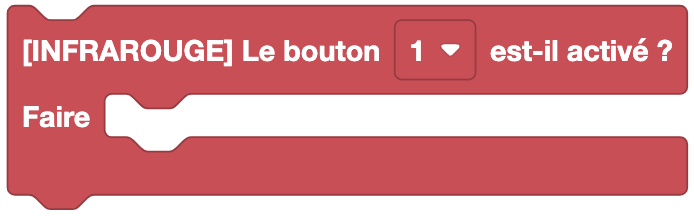
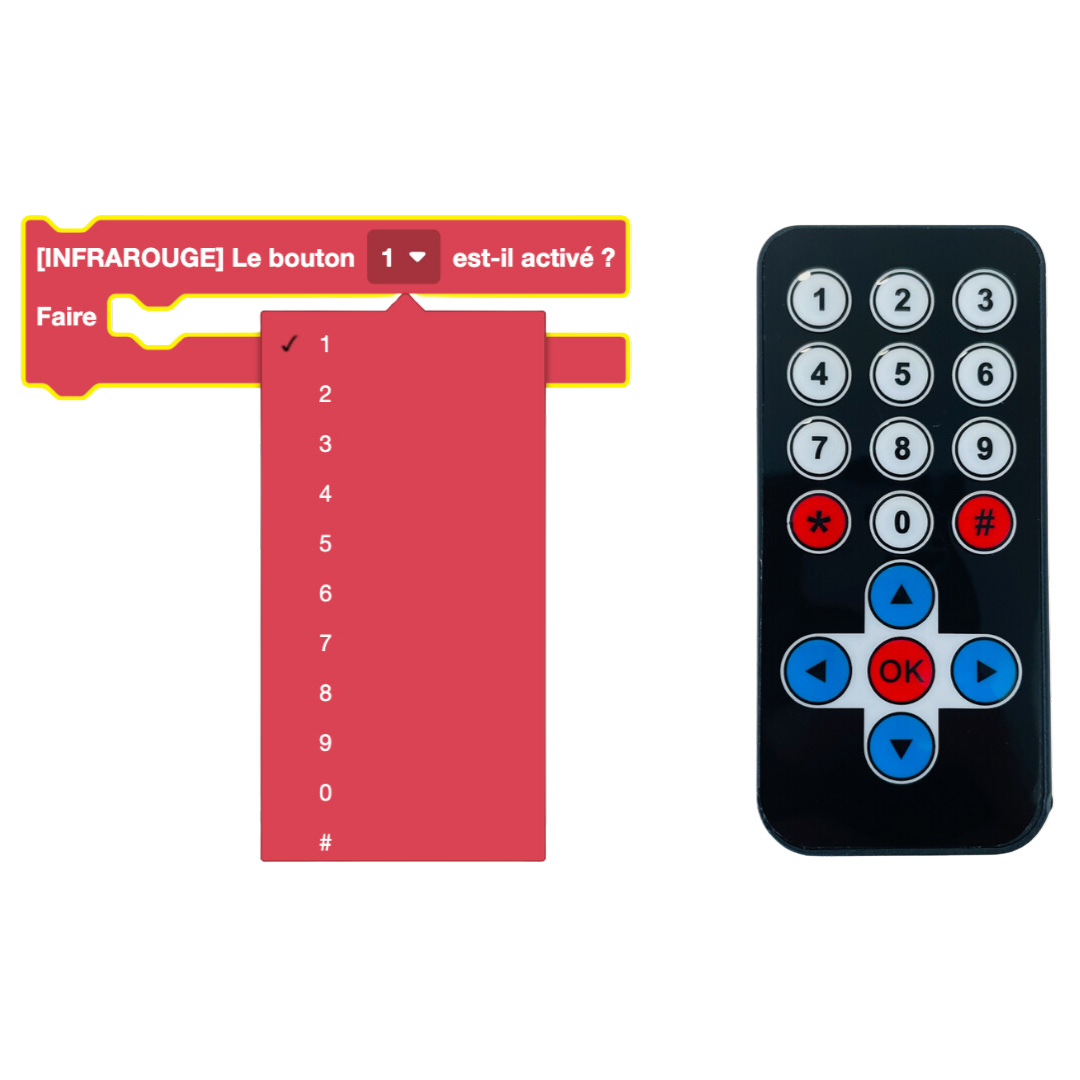
Type: Order
Definition :
This block allows you to read the command from the infrared remote control and perform an action based on the command received.
Use :
If you want Eliobot to perform an action based on the command received by the infrared remote control. For example, move forward, backward, turn left or right. You can also make it play music or light up an LED.