Avoid Obstacles
In this tutorial, we will learn how to use sensors to use Eliobot independently and make it avoid an obstacle 😉
How infrared sensors work
Eliobot is equipped with 4 infrared sensors (see the diagram below) which allow it to detect obstacles.
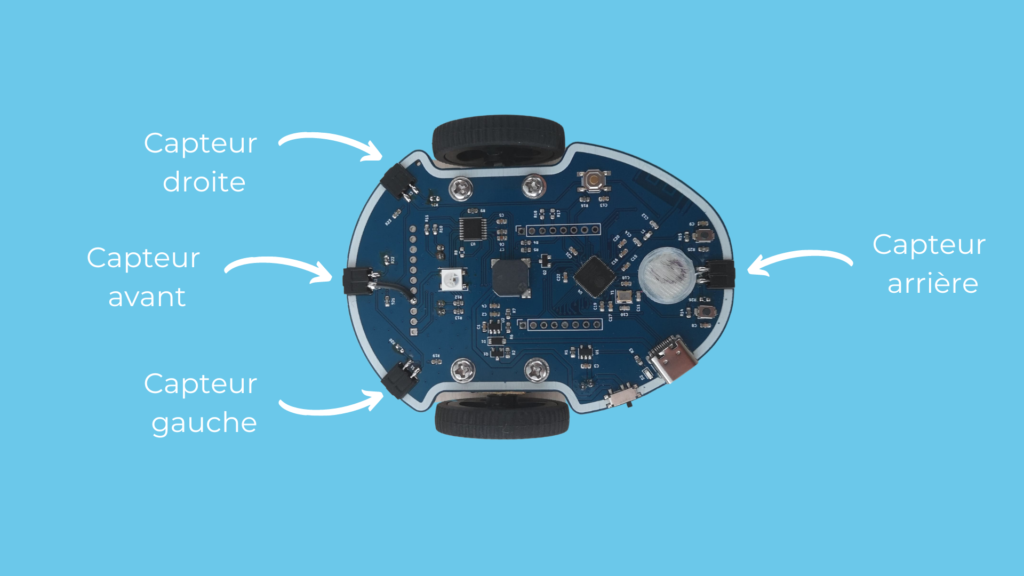
But technically how does it work? 🤔
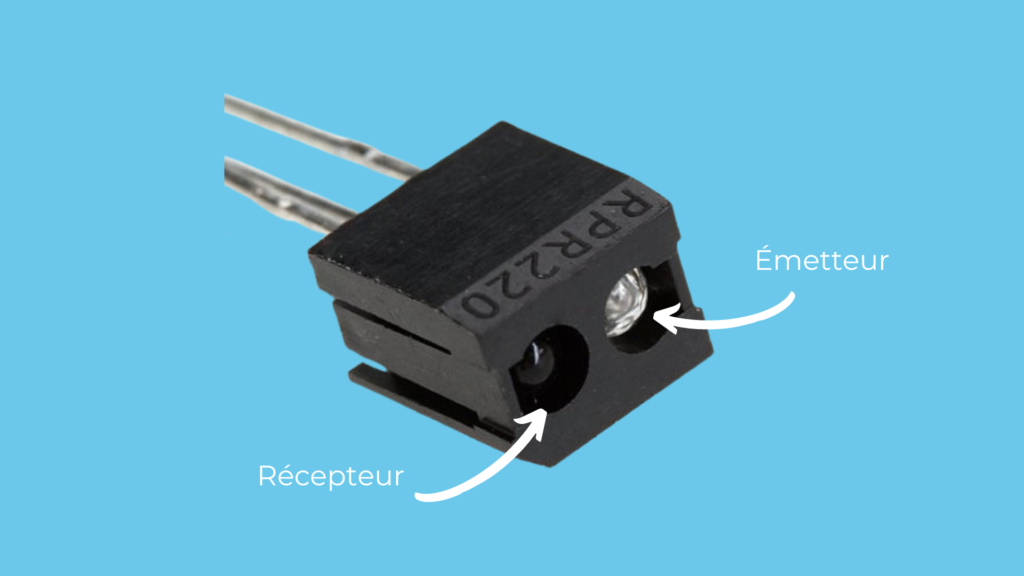
Each sensor is made up of a transmitter and a receiver. The role of the transmitter is to send light to illuminate obstacles. The light will then be reflected towards the receiver, which will allow us to know the quantity of light received and therefore deduce a distance.
The greater the amount of light, the closer the obstacle.
Detect an obstacle
To start this tutorial, go to our programming interface https://app.eliobot.com/.
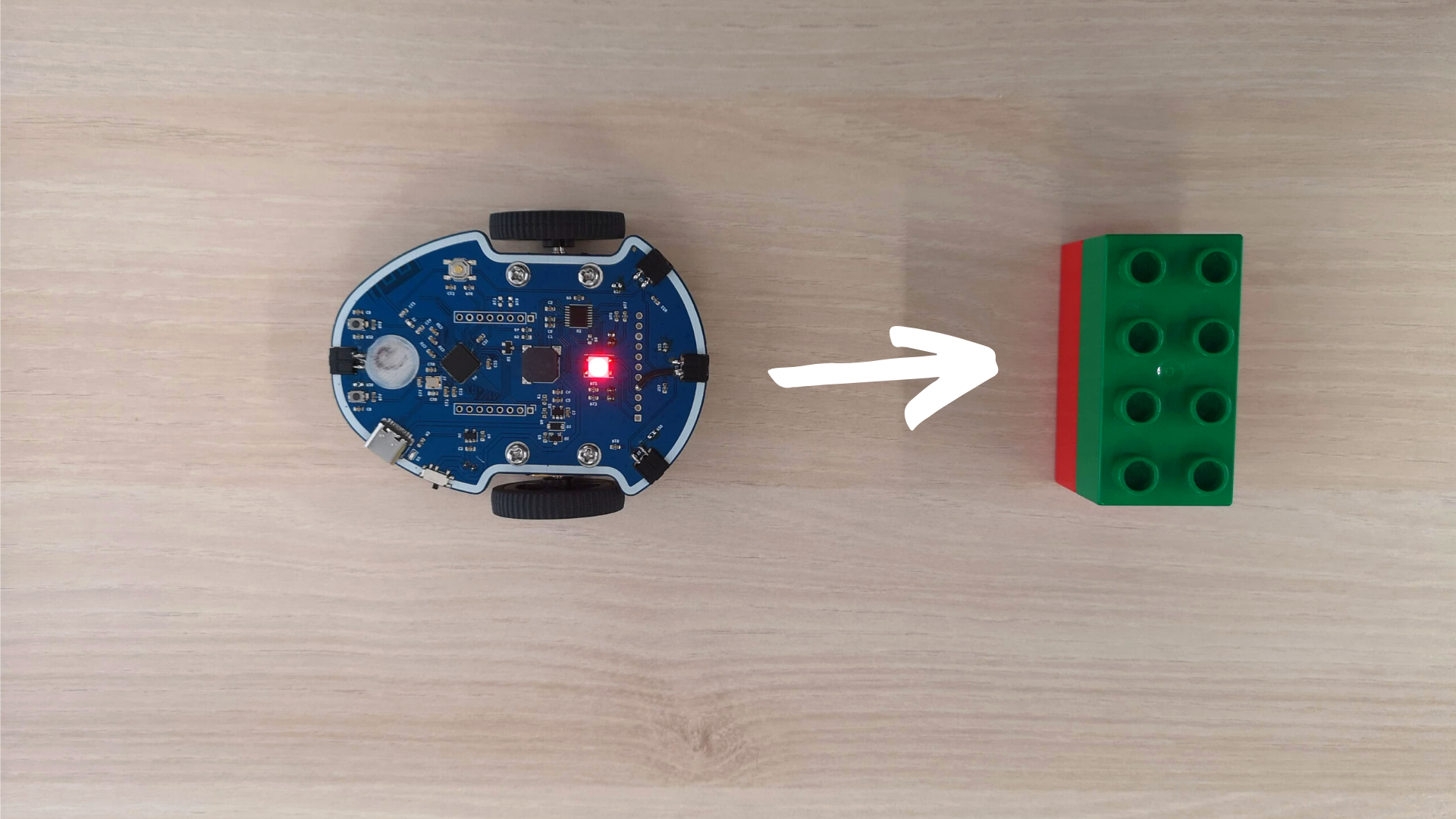
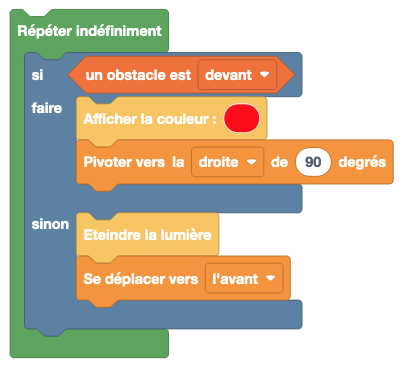
We start with a first simple example: if Eliobot detects an obstacle in front of it, the red LED lights up. If Eliobot does not detect any obstacle, the LED turns off 💡
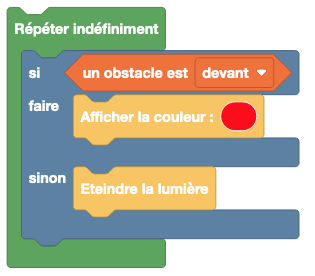
The first step is to select the obstacle detection action. To do this, go to the Obstacles tab then select the an obstacle is in front block.
It is possible to choose which sensor to use, in our case it will be the front sensor.
You have probably noticed that this new block has a different shape and cannot be used as is with the blocks used until now. This is a Boolean that we can use as a condition in the If... do... else block.
Finally, to clearly identify when an obstacle has been detected, display a color with the Show color block in the do branch, and Turn off light in the otherwise branch.
Choose the color you want, you're the artist. 😉
Go Around the Obstacle
Now that Eliobot can detect an obstacle, we can tell it what to do when it encounters one. The simplest action is to change direction by turning left or right.
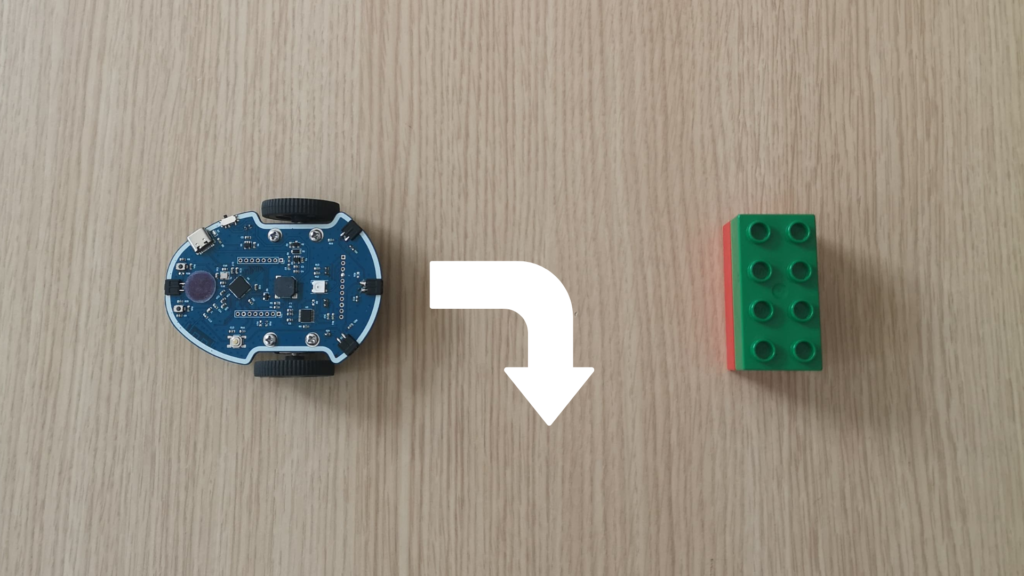
Since most of the work is already done in the program above, we will reuse it and add movement blocks in addition to the LED commands.
First, define the movement to perform when Eliobot detects an obstacle. In our case, we make it turn right by a quarter turn. Use the Rotate to the right by 90 degrees block from the Movements tab and place it below the red color block.
Then define the movement to perform when there is no obstacle: move forward. Use the Move forward block from the Movements tab and place it in the otherwise branch.
Program transfer
To test the program on Eliobot, plug it into the computer with the USB cable and click on the “Program” button.
You will then see the LED flashing and once finished you can unplug Eliobot to see the result! 🙂