Configuration de Python
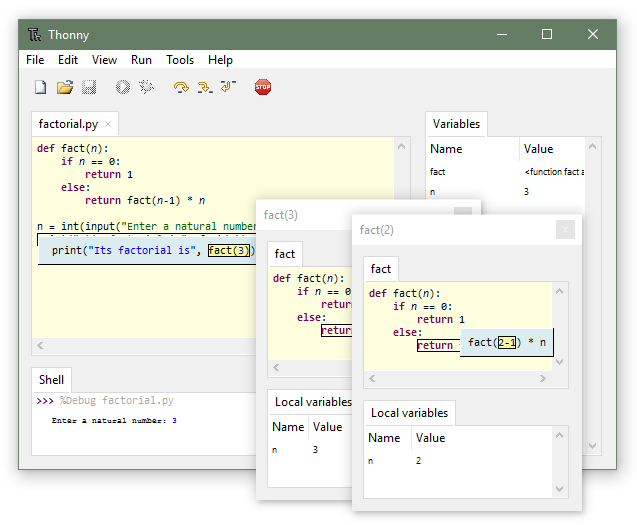
The first step to getting started in programming is to configure a development environment (we speak of an IDE in English). The one we are offering you is called Thonny and is available right here: https://thonny.org/
Once you have downloaded and installed the version that corresponds to your computer, we will configure Thonny so that it is compatible with Eliobot.
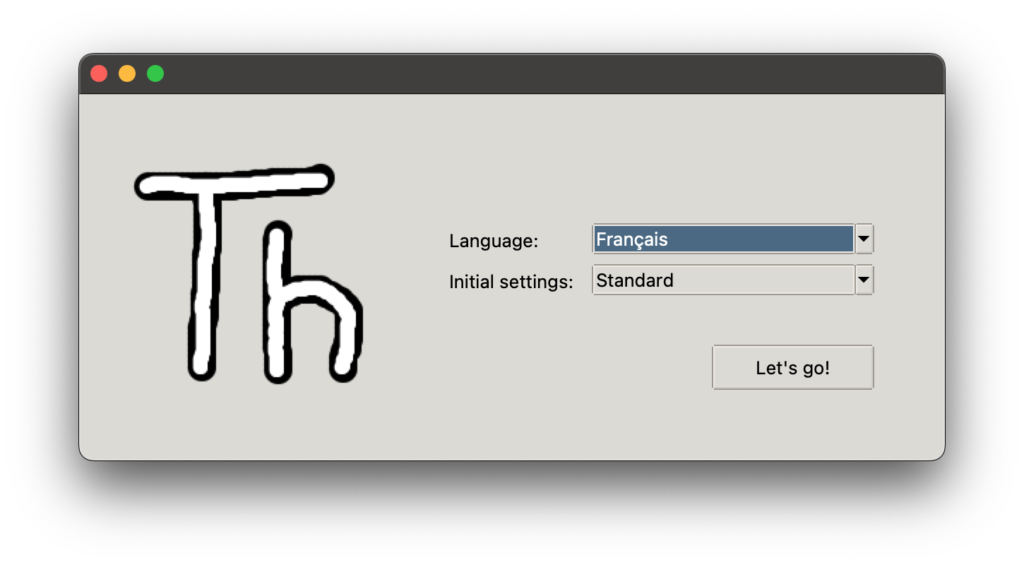
During the first launch Thonny asks you to choose your language, you can then choose “French” then click on “Let’s go!”
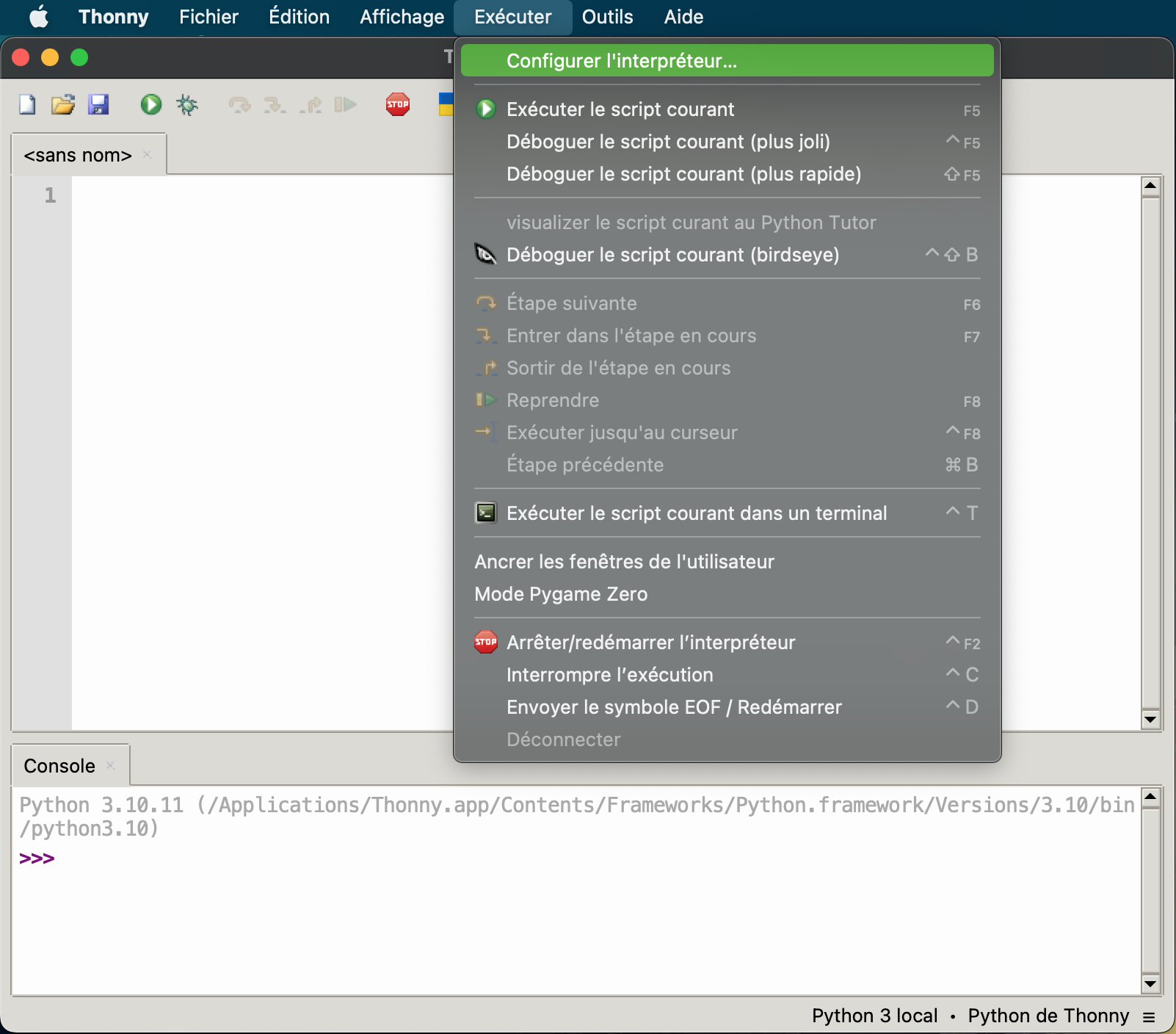
Now that Thonny is launched, we will connect Eliobot to it. Connect Eliobot to your computer using the USB cable, then at the very top of the window click on “Run” then “Configure interpreter”.
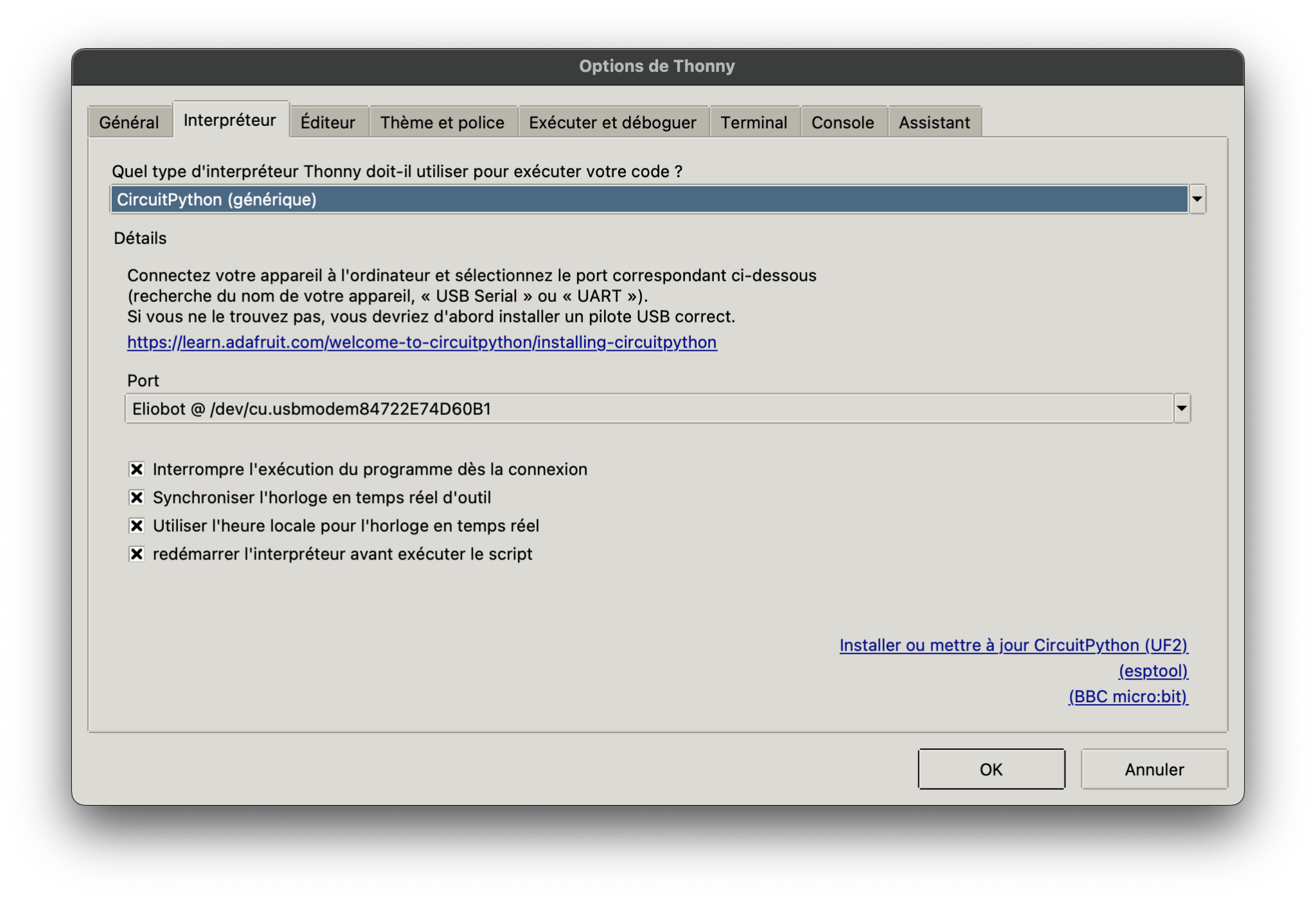
You then arrive on a window with two drop-down menus that must be configured as below. The first asks you for the type of interpreter, in our case it is “CircuitPython”. The second asks you to select the port to connect to, then select “Eliobot”.
Sometimes the port is recognized as “CircuitPython” under Windows, we will use this one in this case.
After clicking on “OK” the Eliobot LED lights up white which means that it is well connected. To check the connection we can send it the “help()” command in the console at the bottom, it should then respond with the following message:
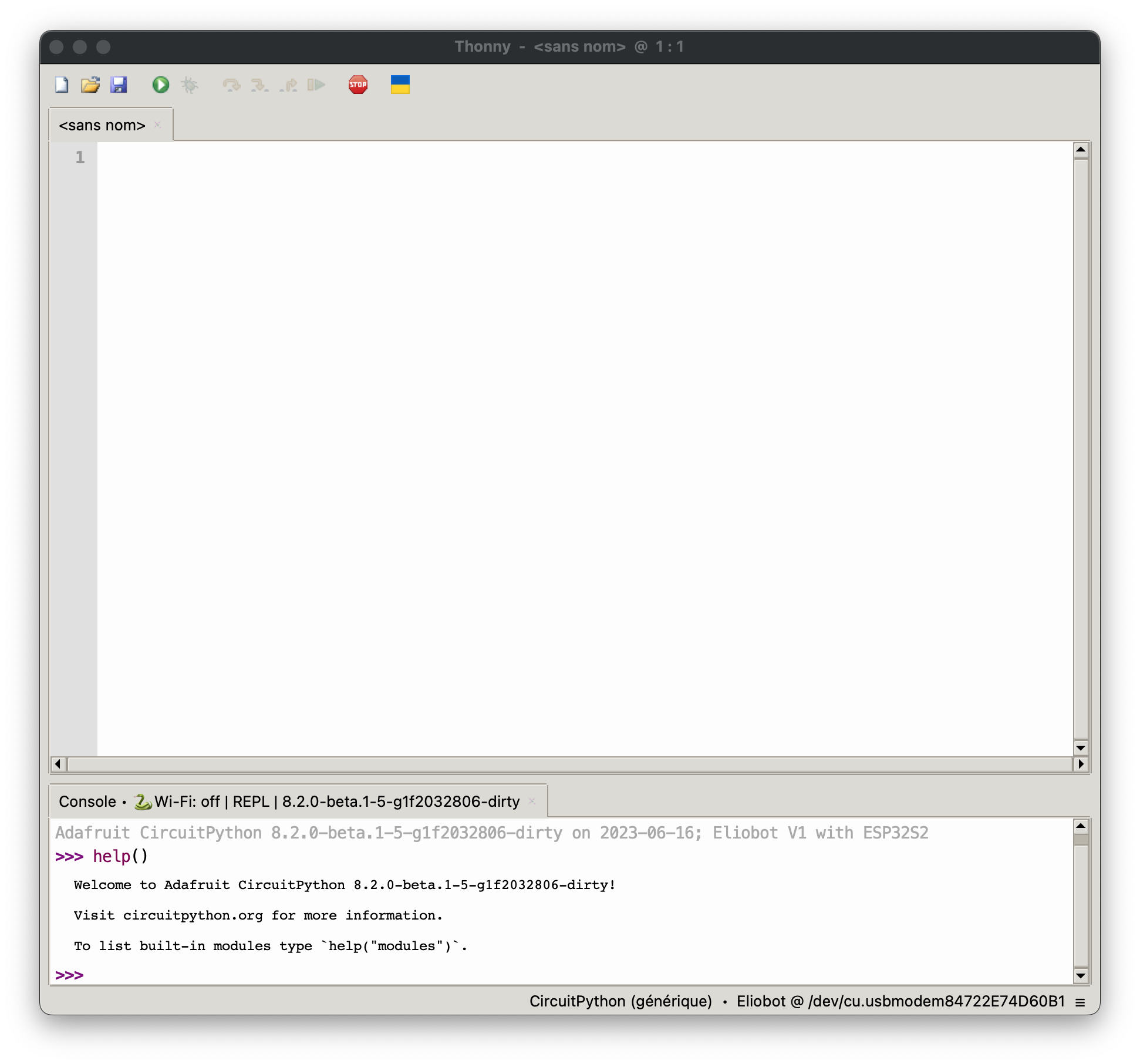
A final step to make the interface more pleasant is to display the content of Eliobot. To do this, go to the top in “View” then “Files”
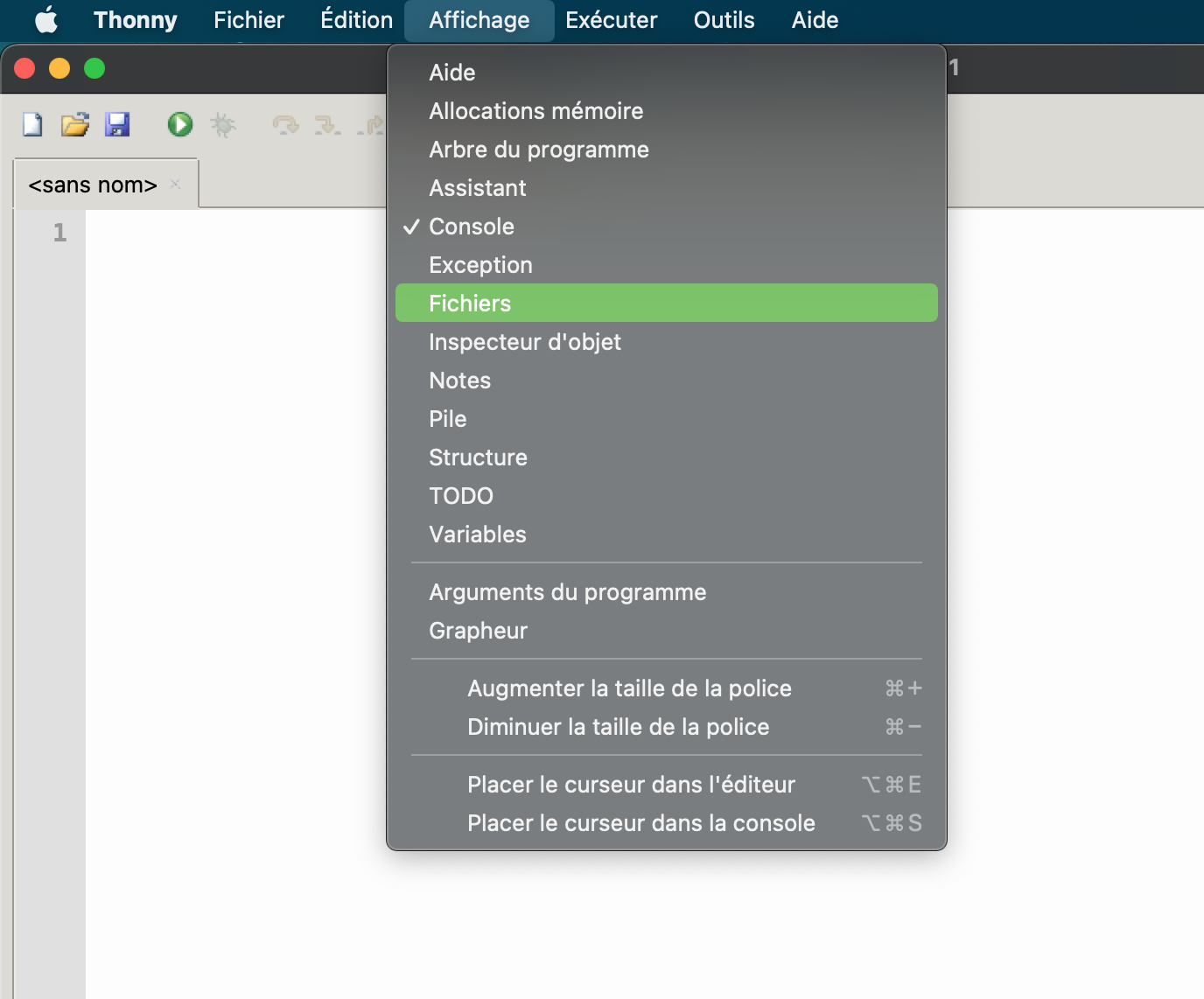
You can see that a new column has just appeared on the left.
Below “CircuitPython device” are all the files contained in your Eliobot.
You will find in particular the “main.py” file, the main program and which contains all the code of the last program that you sent to Eliobot. The “.py” extension means that it is a file written in Python.
We are going to open the “main.py” file to create our program. A common example is to display the message “Hello world!” and in our case we will use the “print()” command to display it in the console.
Our program fits in a single line: print(“Hello world!”)
To see the message displayed, all we have to do is run the program by clicking on the button with the arrow ▶️.
You should get the following result:
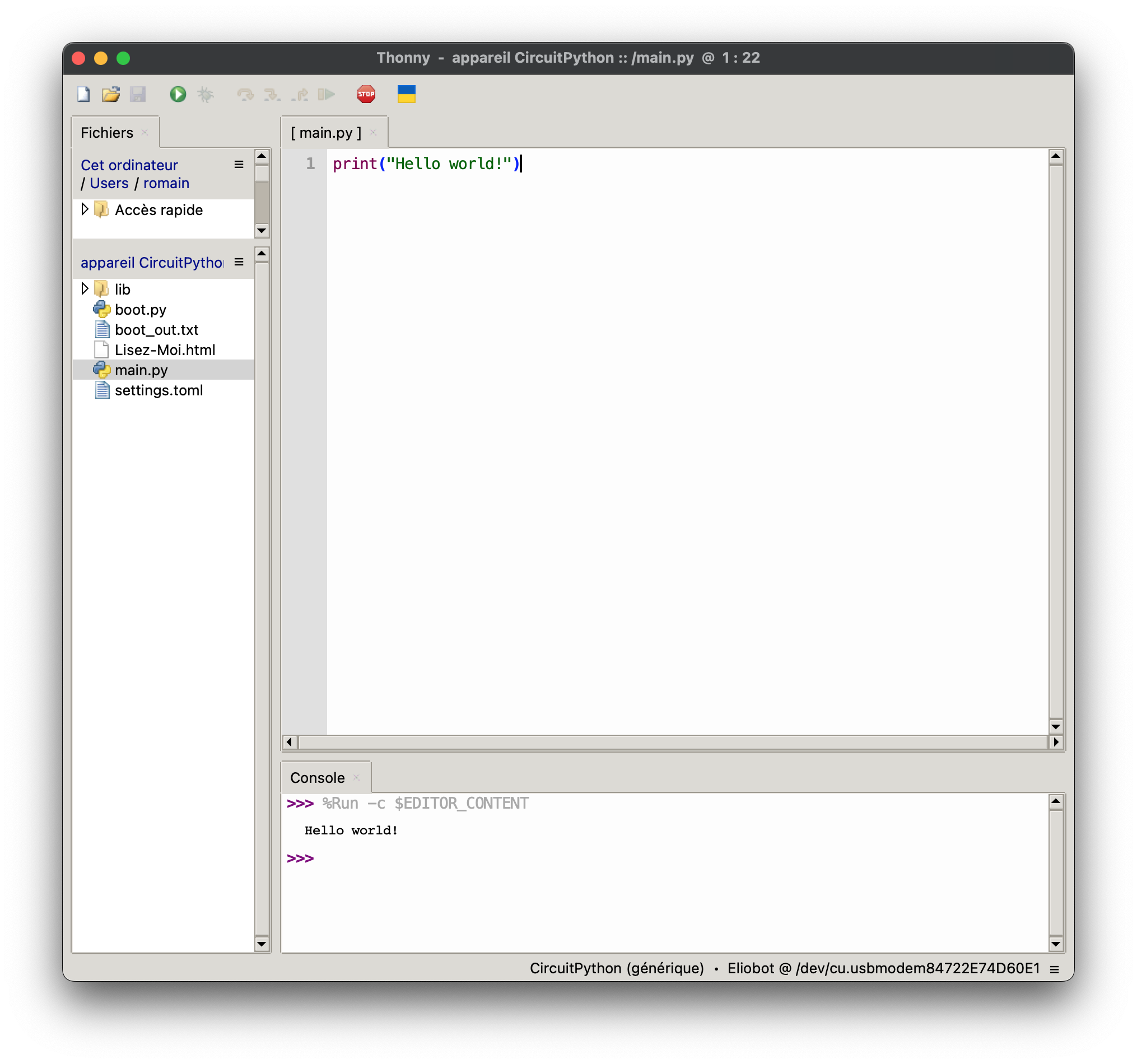
And there you have it, you have just created your first command in Python for Eliobot!
In the following example we will see together how to build a program that does not need a computer to function.